This document describes how experimenters can add, remove, and/or comment on strikes
in the PIPER system.
- Strikes are assigned to participants for failing to following PIPER rules. Common reasons that strikes might be assigned include failing to attend an occurrence without canceling in advance, deliberately misrepresenting eligibility criteria, or being disruptive in a study. Participants should receive only one strike per occurrence. A strike should be assigned in consultation with a faculty member and the justification for assigning it must be documented.
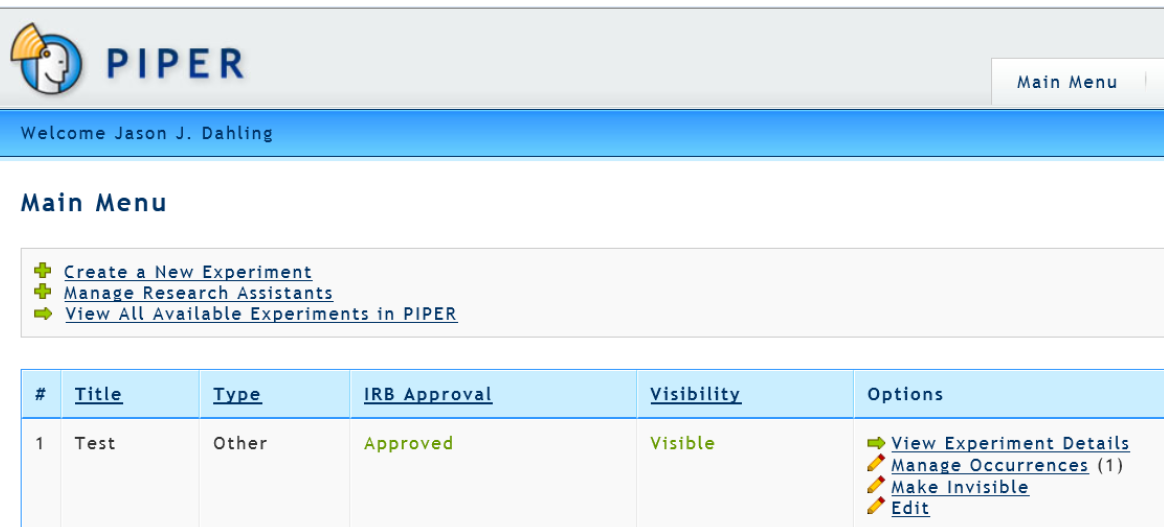
- Log into PIPER using the faculty Unix account. You will see the screen below:
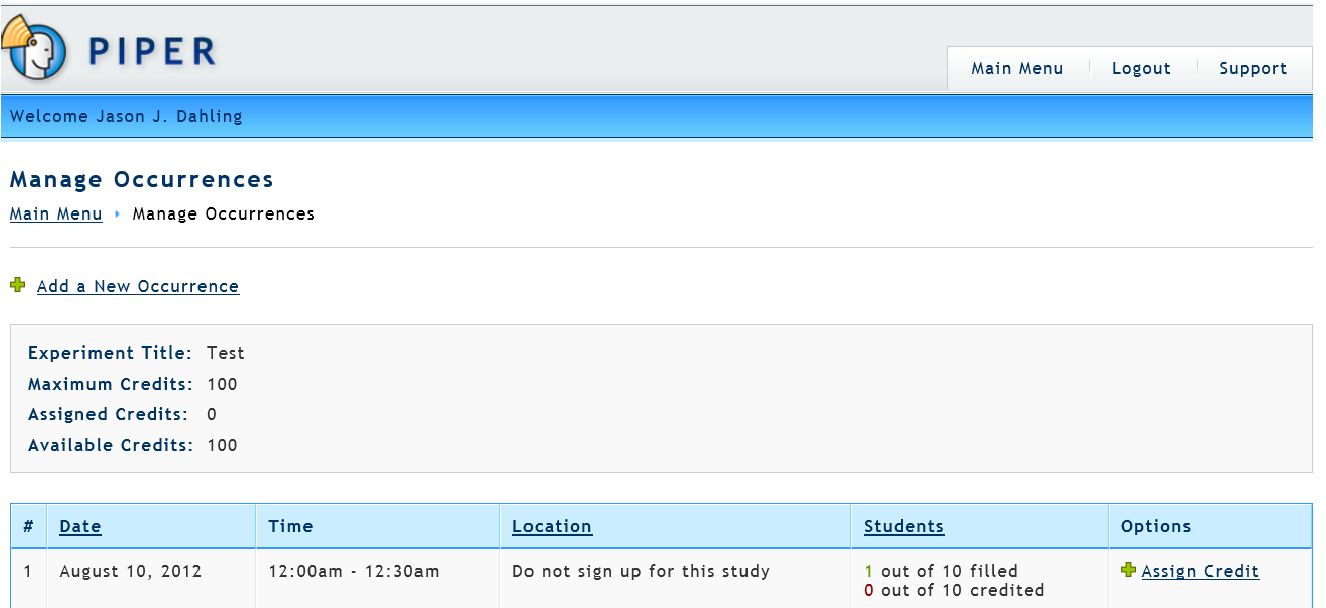
- Click on ‘Manage Occurrences’. You will see the following screen with your list of occurrences posted at the bottom:
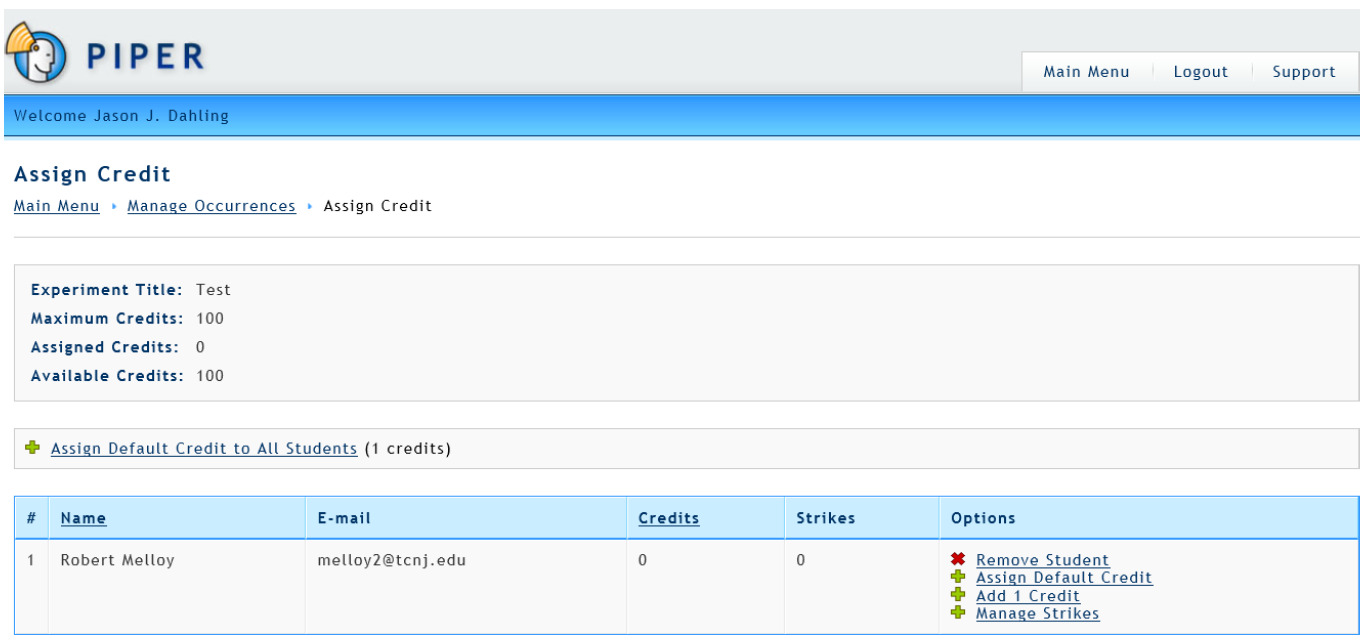
- Click the ‘Assign Credit’ hyperlink. From this screen you can view how many students have signed up to participate and how many students have already been credited or received strikes.
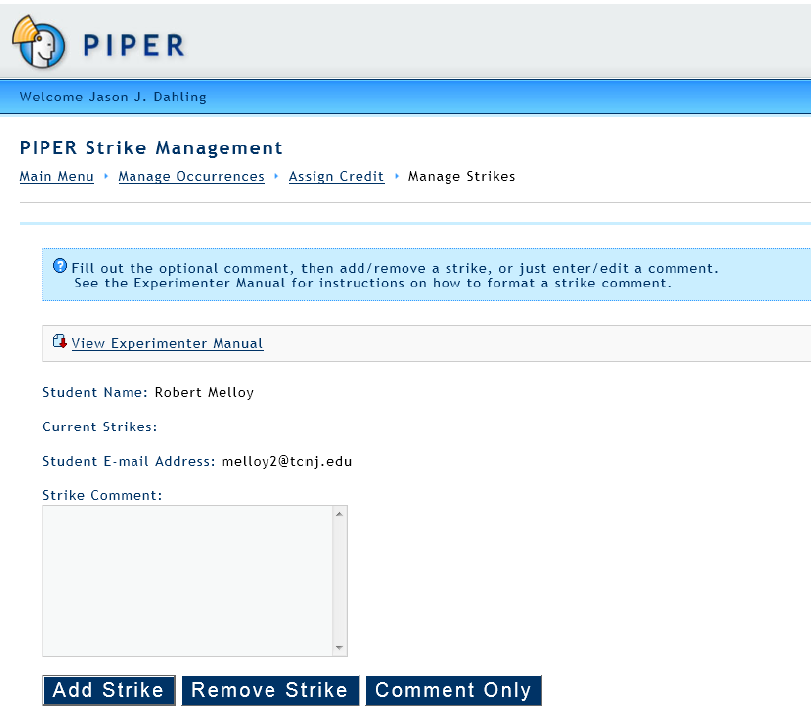
- You now have the option to assign, remove, or comment on a strike. When you click “Manage Strikes” for a particular participant, the following screen appears:
- The “Strike Comment” field is a running document that details the justifications for adding and removing each strike that a participant has received. You should not edit or delete the comments made by other researchers when you add a strike. Instead, scroll down to the bottom of the field and start a new entry.
- A strike comment must report the following information:
- Date and time of occurrence
- Study name
- Your name (and faculty lab if student)
- What action you took (strike added or removed)
- A short description of why you took that action
- Example 1:
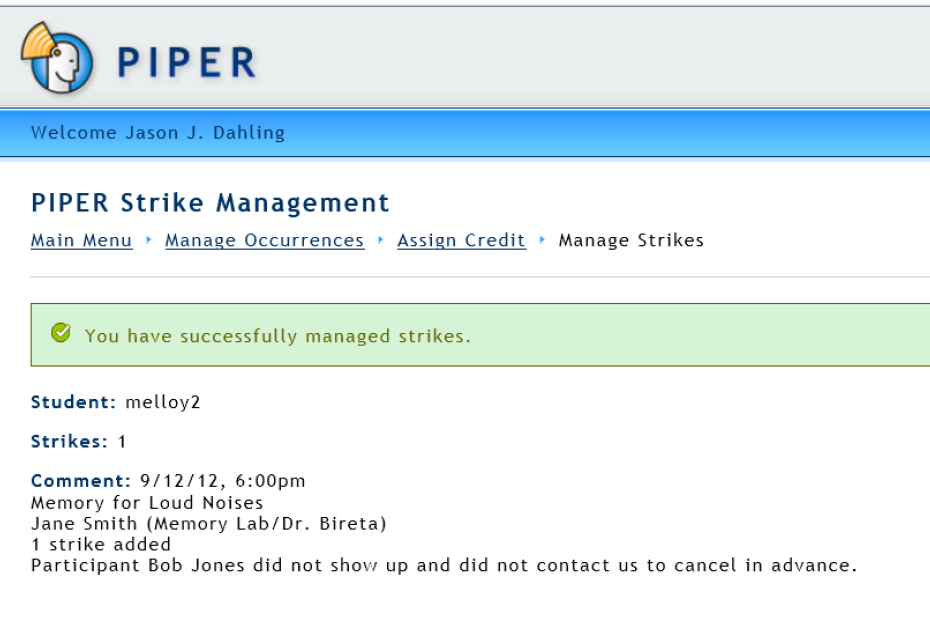
- 9/12/12, 6:00pm
- Memory for Loud Noises
- Jane Smith (Memory Lab/Dr. Bireta)
- 1 strike added
- Participant Bob Jones did not show up and did not contact us to cancel in advance.
- Example 2:
- 10/15/12, 8:00am
- Golf Putting I
- Dr. Grimm
- 1 strike removed
- Removed a strike given in error after the participant clarified her eligibility
- A strike comment must report the following information:
- After you edit the Strike Comment field appropriately, choose to either “Add Strike”, “Remove Strike”, or “Comment Only”. You should only apply one strike per occurrence, so only click this button once! Use the “Comment Only” option if you need to update a strike entry with more information after a strike has been added or removed. If successful, you should see the following screen with the participant’s updated strike count and comment:
- Participants will be emailed when their strike count is modified. They will be able to see the comments that you enter and appeal them to the PIPER coordinator, so please be clear why the strike count changed and retain a professional tone in your comments. Participants with a strike count of 3 or above cannot sign up for research studies; they can only satisfy the PIPER requirement with a compulsory written assignment administered by the PIPER coordinator.